This article is also available in Chinese閱讀中文版 →
OpenClaw Setup Guide: 26 Tools + 53 Skills Explained

You’ve installed OpenClaw. Now what?
Tools are scattered across different docs. Skills auto-load by default — some are already active and you don’t even know it. Enable everything and you’re exposed. Disable everything and you’ve wasted the install. Piecing together the full picture from docs and source code takes real effort.
This is my research notes after setting up OpenClaw — compiled from the official docs and GitHub source code, covering what each of the 26 Tools and 53 official bundled Skills does, whether to enable it, how I configured mine, and why. Security analysis is covered in the security guide. This article focuses on what each Tool and Skill does and how to configure them for your needs.
(There are 13,700+ third-party Skills on ClawHub — those are outside the scope of this guide.)
What’s the Difference Between Tools and Skills?
Many people confuse these two. It’s actually straightforward.
Tools are organs — they determine whether OpenClaw can do something. read and write let it access files, exec lets it run system commands, web_search lets it search like Google, web_fetch lets it read web pages, browser lets it interact with pages (click buttons, fill forms, take screenshots). Without a Tool enabled, it’s like having no hands — nothing gets done.
Skills are textbooks — they teach OpenClaw how to combine Tools to accomplish tasks. gog teaches it how to use Google Workspace for email and calendar, obsidian teaches it how to organize notes, github teaches it how to work with repos, slack teaches it how to send messages to channels. The 53 official Skills cover notes, email, social media, development, smart home, and more.
Does installing a Skill give OpenClaw new permissions? No.
Example: You install the obsidian Skill. OpenClaw now knows how to organize notes — but without the write Tool enabled, it can’t write files at all. Skills are manuals. The real switches are in Tools.
For OpenClaw to actually do something via a Skill, three conditions must be met. Take “read your Gmail” as an example:
- Configuration: Did you allow OpenClaw to run commands? (Without
exec, it can’t even launch a program) - Installation: Is the
gogbridge tool installed on the machine? (Without it, OpenClaw knows what to do but can’t connect to Google) - Authorization: Did you log into your Google account and grant access? (Without authorization, Google won’t let it in)
All three are required. Skills are manuals — whether something actually works depends on these three conditions.
How Are 26 Tools and 53 Skills Organized?
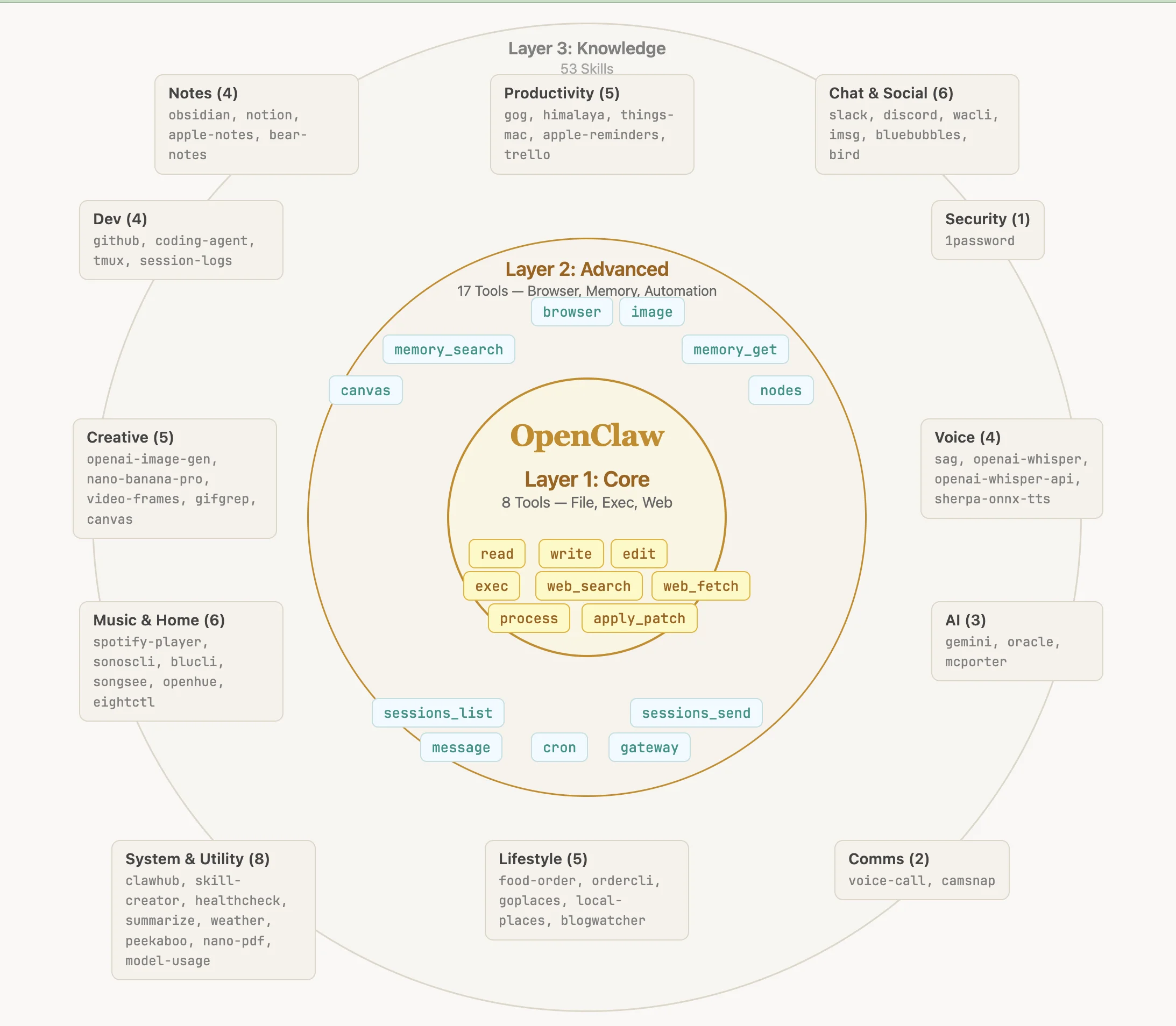
Listing all 26 Tools and 53 Skills flat would be overwhelming. I organize them in concentric circles:
- Layer 1 — Core Capabilities (8 Tools): File access, command execution, web access. Almost everyone enables these.
- Layer 2 — Advanced Capabilities (18 Tools): Browser control, memory, multi-session, automation. Enable as needed.
- Layer 3 — Knowledge Layer (53 Skills): Teaches OpenClaw to work with Google, Obsidian, Slack, etc. Install what you use.
Layer 1: Core Capabilities (8 Tools)
These 8 Tools are OpenClaw’s foundation. With only these enabled, OpenClaw is reactive — you ask, it responds. It can read files, run commands, and search the web, but it won’t remember your preferences across sessions or proactively push you notifications. What turns OpenClaw from a “chatbot” into an “assistant” is Layer 2. But without Layer 1, Layer 2 can’t function.
File Operations: read, write, edit, apply_patch
read is read-only. write and edit can modify files, apply_patch applies code changes. These four are fundamental — most people enable all of them.
Execution & Process Management: exec, process
exec lets OpenClaw run any shell command — install packages, run scripts, manage the system. “Any” is the key word: it can install dependencies for you, but it can also rm -rf your entire machine. Without exec, most tasks fail. With exec and no safeguards, you’ve handed over root access.
That’s why I strongly recommend enabling approval alongside exec — every command is shown to you first, and only runs after you confirm:
{ "approvals": { "exec": { "enabled": true } }}Is it annoying? Honestly, yes. But it’s the most basic protection — if the AI ever misjudges or gets hit by a Prompt Injection attack, this gate is your last line of defense.
process manages background processes — list tasks, check output, kill stuck processes. Usually enabled alongside exec.
Web Access: web_search, web_fetch
web_search performs keyword searches, web_fetch reads web page content. Together, they let OpenClaw browse the internet for information.
Layer 2: Advanced Capabilities (18 Tools)
Layer 1 is “can it work at all.” Layer 2 is “does it work well.” These Tools transform OpenClaw from a command executor into a real assistant — one that remembers your preferences, controls a browser, and sends scheduled notifications. But each additional Tool expands the attack surface, so evaluate whether the trade-off is worth it.
Browser: browser, canvas, image
browser lets OpenClaw control Chrome — click buttons, fill forms, take screenshots. v2026.3.13 added Chrome DevTools attach mode, letting it connect directly to your signed-in Chrome session without any extensions. I use it for price comparisons, spec research, and adding items to shopping carts. But I always check out myself. The “last mile” involving payments never goes to AI — that’s my line.
canvas is a visual workspace for diagrams and flowcharts. image lets OpenClaw “understand” images.
Memory: memory_search, memory_get
Lets OpenClaw remember information across sessions. After a week of use, it knows I build blogs with Astro, deploy on Azure, and prefer Traditional Chinese — no need to re-explain every time. The longer you use it, the better it knows you.
Multi-Session: sessions series (5 tools)
Run multiple sessions for different tasks simultaneously — one discussing a product idea, another researching travel plans, without interference.
sessions_list and sessions_history view sessions. session_status checks status. sessions_send and sessions_spawn enable inter-session communication and spawning sub-tasks. sessions_yield pauses the main agent to wait for sub-agent results, and subagents manages running sub-agents (check status, stop, etc.)—these two are for multi-agent orchestration.
Messaging: message
Lets OpenClaw send messages to Discord, Slack, Telegram, WhatsApp, iMessage.
I have this enabled but only for sending messages to myself — never for communicating with others on my behalf. The reason is simple: messages sent in your name by AI can’t be unsent. If it misunderstands the context, uses the wrong tone, or gets tricked by Prompt Injection into sending something, you bear the consequences.
I use OpenClaw as the mobile gateway to my entire AI second brain — enabling message lets it proactively push notifications to me: Daily Briefs, task reminders, and to-do alerts, all sent to myself.
Hardware Control: nodes
Cross-device hardware control — remote screenshots, GPS location, camera access.
When I first saw this Tool, I asked myself: when would I need AI to open my camera on its own? I couldn’t think of a scenario. For screenshots, I can just send one via Telegram — one extra step but much more peace of mind. Disabled.
Automation: cron, gateway
cron sets up scheduled tasks. gateway lets OpenClaw restart itself.
Every morning at 6:47, my Telegram receives a Daily Brief prepared by OpenClaw — what I need to do today, pending messages to reply to, and the weather forecast. That’s cron plus message in action, — OpenClaw is the bridge between my entire AI second brain and my phone, so I stay in the loop even away from my computer.
Agent Communication: agents_list
Lists available Agent IDs. OpenClaw supports multi-agent architectures, but official docs don’t go into detail. If you’re running a single OpenClaw instance, you won’t need this.
Voice: tts
tts (text-to-speech) converts OpenClaw’s replies into voice messages — on Telegram, they appear as round voice note bubbles. Supports ElevenLabs, OpenAI TTS, and Edge TTS. Disabled by default; enable auto-voice in config with messages.tts.auto or toggle per session with /tts on.
Extension Tools: llm_task, lobster
lobster is a workflow engine for defining multi-step processes. llm_task inserts LLM processing steps into workflows.
If you’re not using a workflow engine, skip both.
Which of the 53 Official Skills Should You Install?
53 sounds like a lot, but after scanning them you’ll find maybe a dozen are relevant to you. The rest — food delivery, smart home, voice calls — aren’t bad, just irrelevant if they don’t match your use case.
Important: bundled Skills auto-load by default — if the corresponding CLI tool is installed on the system, the Skill activates automatically. It’s not “nothing unless installed” but “everything unless disabled.” To control which Skills are active, use skills.allowBundled in whitelist mode (config example in the “My Config” section below).
ClawHub has 13,700+ third-party Skills. Since February 2026, ClawHub has integrated VirusTotal automatic scanning to block malicious Skill downloads, but reviewing before installing is still recommended (see the security guide).
Organized by use case below.
Notes
4 note-taking Skills: obsidian, notion, apple-notes, bear-notes. Whether they work depends on your deployment.
apple-notes and bear-notes only work on Mac locally — if OpenClaw runs in a VM, they’re out. obsidian operates on local files. I use Obsidian, but my vault is on my Mac while OpenClaw is on an Azure VM, so I handle notes with Claude Code locally rather than through OpenClaw. If you want OpenClaw to manage notes directly and it runs in a VM, notion is cloud-based with no deployment constraints — the path of least resistance.
Productivity
Two email Skills: gog and himalaya. gog integrates the entire Google Workspace (Gmail, Calendar, Tasks, Drive, Docs, Sheets). himalaya uses IMAP/SMTP for sending and receiving only. If you’re on Google, go with gog — more complete, and you can revoke access from your Google account anytime.
Task management has things-mac (Things 3), apple-reminders, and trello. If you already have gog, Google Tasks is included — no extra install needed.
Messaging & Social Media
wacli (WhatsApp), imsg (iMessage), bird (X/Twitter), slack, discord — these Skills give OpenClaw deep access to each platform, including searching message history, syncing conversations, and managing channels. Unlike the message tool (which only sends messages), installing these gives it full access to your data on that platform.
I haven’t installed any of them. The last step in external communication is always manual.
Developer Tools
github: Operates GitHub viaghCLI, requires OAuth, permissions are controllabletmux: Manages multiple terminal sessionssession-logs: Searches and analyzes past conversation logscoding-agent: Calls other AI coding assistants (Claude Code, Cursor, etc.) in the background
I have github, tmux, and session-logs installed. I write code locally with Claude Code, but OpenClaw is always reachable via Telegram — if CI/CD breaks while I’m out, I just ask “check why this PR build failed” on my phone, and it pulls the GitHub Actions error log and tells me the cause.
I haven’t installed coding-agent yet, but the potential is significant — you could install Claude Code on OpenClaw’s VM and let it dispatch coding tasks in the background. Imagine telling OpenClaw via Telegram: “I found this interesting repo on GitHub — clone it, study it, and build a demo site.” It launches Claude Code, executes autonomously, and pushes a notification when done. AI orchestrating AI. I haven’t explored this deeply yet, but it’s on my list.
Password Management
1password lets OpenClaw access your 1Password vault — look up passwords, auto-login, fill forms. Use cases like: “Log me into AWS Console” or “What’s the password for this site?”
But the permission model is all-or-nothing: once authorized, it has access to the entire vault. You can’t limit it to specific entries — whatever you’ve stored, it can read. I chose not to install it. If you really need this, consider creating an “AI-only vault” containing only passwords you’re comfortable sharing with AI.
Other Categories
The categories above are what I actively use or seriously considered. The rest — music playback, smart home, image generation, speech-to-text, food delivery — I haven’t installed. Full list in the appendix.
How Do I Configure My Tools and Skills?
My OpenClaw runs on an Azure VM, operated via Telegram. Paired with Claude Code on desktop, it forms a mobile + desktop dual workflow — mobile for discussions, research, and capturing ideas anytime (conversation history syncs automatically), desktop for execution. I also use it daily for email, calendar, research, and the morning Daily Brief.
Here’s my current config and the reasoning behind each choice.
Tools (22 of 26 enabled)
My rule is simple: if I can’t think of a use case, it stays off.
{ "tools": { "allow": [ "read", "write", "edit", "apply_patch", "exec", "process", "web_search", "web_fetch", "browser", "image", "memory_search", "memory_get", "sessions_list", "sessions_history", "sessions_send", "sessions_spawn", "session_status", "tts", "message", "cron", "gateway", "agents_list" ], "deny": ["nodes", "canvas", "llm_task", "lobster"] }, "approvals": { "exec": { "enabled": true } }}22 enabled, 4 disabled: nodes (can’t think of a scenario), canvas (don’t need it), llm_task / lobster (not using workflow engine). sessions_yield and subagents are for multi-agent orchestration — not using them yet so they’re not listed. exec has approval enabled. message only sends to myself.
Skills (9 of 53 enabled)
As mentioned earlier, bundled Skills auto-load by default. I use allowBundled whitelist to restrict to only what I need:
{ "skills": { "allowBundled": [ "gog", "github", "tmux", "session-logs", "weather", "summarize", "clawhub", "healthcheck", "skill-creator" ] }}In short: gog for email and calendar, github for repos, and the rest are utilities for Daily Brief and system management.
How to Automate Tasks with Your AI Agent
This is where OpenClaw stops being a chatbot and starts being infrastructure. The combination of cron (scheduling) and message (push notifications) turns it into an automation engine that works while you sleep.
The pattern is always the same: trigger + action + deliver. Define when it runs, what it does, and where results go. Here are the automations I actually use:
Daily Brief — Every morning at 6:47, my Telegram receives a briefing: today’s calendar, pending emails that need replies, weather forecast, and any CI/CD failures overnight. This single automation replaced my habit of checking five different apps before coffee.
Email Triage — Twice a day, OpenClaw scans my inbox, categorizes messages by urgency, and sends me a summary. Newsletters get archived. Anything requiring action gets flagged with a one-line summary. I went from 30 minutes of inbox management to 5.
CI/CD Monitoring — When a GitHub Actions workflow fails, OpenClaw reads the error log, identifies the likely cause, and pushes a Telegram message with the diagnosis. I’ve fixed production issues from my phone while standing in line for coffee.
Content Research — Daily, OpenClaw collects trending discussions from specific subreddits, Hacker News threads, and RSS feeds I follow, then compiles a digest of potential writing topics. It doesn’t write for me — it surfaces what’s worth writing about.
The setup isn’t complicated. Each automation is a cron entry that triggers a prompt, and the prompt tells OpenClaw which tools to use and where to send results. The hard part isn’t the config — it’s figuring out which parts of your routine are worth automating. Start with one that saves you the most daily friction, get it working, then add more.
How Do You Get Started?
You don’t need all 26 Tools. The 53 bundled Skills default to all-on — use allowBundled to keep only what you need. Open your openclaw.json and start with three principles:
- If you can’t think of a use case, leave it off
- More capability, more control — enable approval for
exec, only message yourself - The last mile is always manual — checkout, sending messages, posting publicly — anything irreversible stays with you
My config above works as a starting point. Copy it, then trim to fit your needs. For security settings, read it alongside the security guide. For deployment costs, see the deploy cost guide.
Appendix: Full Reference
All 26 Tools
| Layer | Tool | Function | Risk |
|---|---|---|---|
| 1 | read | Read files | Low |
| 1 | write | Write files | Medium |
| 1 | edit | Structured editing | Medium |
| 1 | apply_patch | Apply patches | Medium |
| 1 | exec | Execute commands | Very High |
| 1 | process | Manage processes | Medium |
| 1 | web_search | Web search | Low |
| 1 | web_fetch | Fetch web pages | Medium |
| 2 | browser | Browser control | High |
| 2 | canvas | Visual workspace | Low |
| 2 | image | Image analysis | Low |
| 2 | memory_search | Search memory | Medium |
| 2 | memory_get | Get memory | Medium |
| 2 | sessions_list | List sessions | Low |
| 2 | sessions_history | Session history | Medium |
| 2 | sessions_send | Send messages | High |
| 2 | sessions_spawn | Spawn sub-agents | High |
| 2 | sessions_yield | Wait for sub-agent results | Medium |
| 2 | subagents | Manage sub-agents | Medium |
| 2 | session_status | Check status | Low |
| 2 | message | Cross-platform messaging | Very High |
| 2 | nodes | Hardware control | Very High |
| 2 | cron | Scheduled tasks | High |
| 2 | gateway | Gateway management | High |
| 2 | agents_list | List agents | Low |
| 2 | tts | Text-to-speech | Low |
| Ext | llm_task | Workflow LLM step | Medium |
| Ext | lobster | Workflow engine | Medium |
All 53 Skills
| Category | Skill | Platform/Function | Risk |
|---|---|---|---|
| Notes | obsidian | Obsidian | Low |
| Notes | notion | Notion | Medium |
| Notes | apple-notes | Apple Notes | Low |
| Notes | bear-notes | Bear | Low |
| Tasks | things-mac | Things 3 | Low |
| Tasks | apple-reminders | Reminders | Low |
| Tasks | trello | Trello | Medium |
| Work | gog | Google Workspace | Medium |
| Work | himalaya | IMAP/SMTP | High |
| Chat | slack | Slack | Medium |
| Chat | discord | Discord | Medium |
| Chat | wacli | Very High | |
| Chat | imsg | iMessage | Very High |
| Chat | bluebubbles | iMessage (external) | High |
| Social | bird | X (Twitter) | Very High |
| Dev | github | GitHub | Medium |
| Dev | coding-agent | AI Coding | Medium |
| Dev | tmux | Terminal | Low |
| Dev | session-logs | Log Search | Low |
| Music | spotify-player | Spotify | Low |
| Music | sonoscli | Sonos | Low |
| Music | blucli | BluOS | Low |
| Home | openhue | Philips Hue | Low |
| Home | eightctl | Eight Sleep | Low |
| Food | food-order | Multi-platform | High |
| Food | ordercli | Foodora | Medium |
| Creative | openai-image-gen | OpenAI Images | Low |
| Creative | nano-banana-pro | Gemini Images | Low |
| Creative | video-frames | Video Frames | Low |
| Creative | gifgrep | GIF Search | Low |
| Voice | sag | ElevenLabs TTS | Low |
| Voice | openai-whisper | Speech-to-Text | Low |
| Voice | openai-whisper-api | Cloud STT | Low |
| Voice | sherpa-onnx-tts | Offline TTS | Low |
| Security | 1password | 1Password | Very High |
| AI | gemini | Gemini | Low |
| AI | oracle | Oracle CLI | Low |
| AI | mcporter | MCP Integration | Medium |
| System | clawhub | Skill Management | Low |
| System | skill-creator | Create Skills | Low |
| System | healthcheck | Health Check | Low |
| System | summarize | Summarization | Low |
| System | weather | Weather | Low |
| Places | goplaces | Google Places | Low |
| Places | local-places | Local Proxy | Low |
| Media | camsnap | RTSP Camera | Medium |
| News | blogwatcher | RSS Monitor | Low |
| Docs | nano-pdf | PDF Editing | Low |
| Monitor | model-usage | Usage Tracking | Low |
| System | peekaboo | macOS UI | High |
| Comms | voice-call | Voice Calls | High |
| Creative | canvas | Canvas Operations | Low |
| Music | songsee | Audio Visualization | Low |
Tool Groups (shortcuts)
| Group | Includes |
|---|---|
group:fs | read, write, edit, apply_patch |
group:web | web_search, web_fetch |
group:ui | browser, canvas |
group:memory | memory_search, memory_get |
group:sessions | sessions_list, sessions_history, sessions_send, sessions_spawn, sessions_yield, subagents, session_status |
group:messaging | message |
group:nodes | nodes |
group:automation | cron, gateway |
group:agents | agents_list |
group:media | image, tts |
Last updated: 2026-03-17
Enjoyed this? Connect with me on LinkedIn — I’m always happy to chat about AI, systems, and building things solo.
Last updated: March 17, 2026
FAQ
- Do Skills change OpenClaw's permissions?
- No. Skills are just instruction manuals. Actual capabilities are controlled by tools.allow.
- Can the 1password Skill read all my passwords?
- Yes. Once authorized, it has access to your entire vault — whatever you've stored, it can read.
- How do I revoke OpenClaw's Google access?
- Google Account → Security → Third-party apps with account access → Find gog → Remove access.
- Are third-party Skills on ClawHub safe?
- Don't assume they are. Since February 2026, ClawHub has integrated VirusTotal automatic scanning to block malicious downloads, but reviewing the GitHub repo before installing is still recommended. See our security guide for a detailed review checklist.
- What's the difference between OpenClaw and ChatGPT?
- ChatGPT is a chat tool. OpenClaw is an agent. The difference is what happens after the conversation: ChatGPT can only talk to you, while OpenClaw can act — search the web, read and write files, manage your calendar, draft email replies, and push notifications to your phone.
- How to automate tasks with AI using OpenClaw?
- Combine the cron tool (scheduling) with the message tool (push notifications). OpenClaw can run tasks on a schedule and push results to Telegram, Discord, or Slack. Common use cases: daily briefings, email triage, CI/CD monitoring, and content research.
- Can I use OpenClaw without coding?
- Day-to-day usage requires no coding — just talk to it in natural language. But installation and configuration have a learning curve. Using an AI CLI tool like Claude Code to assist with setup can save significant time.