Claude Skills Guide:What They Are, How to Use Them, and Your First Skill
What are Claude Skills and how do you use them? This guide uses the Code tab in the Claude desktop app to show where skills live, how Claude picks one, and walks you through building your first skill: YouTube video notes.

Contents
- 01What Are Claude Skills?
- What SKILL.md Looks Like
- Why You Need Skills
- MCP Is the Kitchen, Skills Are the Recipes
- 02How to Use Claude Skills
- In the Code Tab of the Desktop App
- Call It with /name, or Let Claude Decide
- 03How Does Claude Know Which Skill to Use?
- Three-Layer Loading
- The Description Makes or Breaks Your Skill
- 04Build Your First Skill: Video Notes
- Why Video Notes
- Step by Step
- 05How to Write Skills Well
- Get It Right First, Then Have Claude Write It
- Explain Why Instead of Giving Orders
- What Skills Can Do
- 06Skills Grow With You
- One Skill Takes Many Revisions
- Thirty-Plus Skills Weren’t Built at Once
- You Can Fix It Without Coding
- What This Means
- 07Next: From One Skill to a Whole System
Almost everyone who works with AI has hit the same wall: you teach it something, open a new conversation the next day, and everything resets to zero.
You spend three days dialing in a workflow, going back and forth with Claude until it’s right. Next morning, you’re explaining everything from scratch. You save the prompt in your notes and paste it every time, but after a month of pasting the same 500-word instruction daily, you start wondering—is this really how AI is supposed to work?
It’s not. There’s something built specifically for this problem—Agent Skills.
I use Claude Code, so this article uses Claude Skills as the example. But the same concept goes by other names—Cursor calls them Rules, Codex uses AGENTS.md. The idea is the same, and these tools now all read the same skill format.
Every morning, I type two words—“start work”—and Claude automatically runs through 8 steps: review yesterday, check weekly goals, sync four projects, build today’s task list—then color-codes each task: green for AI handles it, yellow for AI prepares options and I pick, red for I handle personally, gray for skip today. Three minutes later it asks: “What should we tackle first?”
Because I packaged this workflow into a skill, two words get me the same steps, the same format, every single day.
This Claude Skills guide goes from what a skill is and how to use one to building your own. Along the way there are three prompts you can copy as-is. Follow them through, and you’ll have a skill that turns YouTube videos into notes.
What Are Claude Skills?
A Claude Skill is a folder. Inside is a write-up of how to do one thing, and it can also carry reference material, programs that run directly, and templates for the output. Claude opens it when it needs to and follows it.
A complete skill folder looks like this:
my-daily-planning/├── SKILL.md ← main instructions (required)├── scripts/ ← executable scripts (optional)├── references/ ← reference docs (optional)└── assets/ ← templates (optional)SKILL.md is the recipe itself—your workflow, steps, and decision logic live here. Claude reads it and knows what to do.
The other three folders are the ingredients:
See it? Each of these four solves a different problem, but they all serve the same two things: steady quality for you, saved context for the AI. Scripts take no context and compute accurately, references load on demand, assets standardize the output. The whole folder design revolves around those two.
Write once. Every conversation after that, Claude applies it automatically. No pasting prompts, no repeating yourself.
What SKILL.md Looks Like
The core is a Markdown file called SKILL.md—your SOP lives here. It starts with a YAML block (telling Claude what this skill does and when to use it), followed by the actual steps and instructions.
A simplified example:
---name: dailydescription: Daily work planning workflow. Use when the user says  "plan my day", "daily planning", "good morning", or "start work".---
# Daily Planning
## Steps
1. Confirm today's date and day of the week2. Read the last two daily notes and list carry-over items3. Read weekly goals, check progress and days remaining4. Scan in-progress tasks across projects5. Create today's daily note6. Suggest today's work items by priority
The YAML between the --- lines is the cover—Claude uses it to decide whether to activate the skill (more on why that matters later). The Markdown below is the SOP itself. That’s it.
Why You Need Skills
Pasting a prompt every time isn’t just tedious. For you, it’s a gamble; for the AI, it’s waste.
For you, quality comes down to luck. The problem is inconsistency. Explain the same task one way today and another way tomorrow, and Claude does it differently. Sometimes it adds a step, sometimes it skips one, sometimes the format is off. Without a standard SOP, quality is luck. And every single time, you have to find that prompt, paste it, and add a few more lines.
For the AI, it’s a fight for space and attention. Every paste takes a chunk of the context window. Claude now has 1M tokens, which sounds like a lot, but system instructions, tool descriptions, and the conversation history all share that space. When I open a new conversation, tool descriptions, config files, and memory together already take 12%, about 118K tokens, before I’ve said a word. The fuller it gets, the more its attention spreads, and the easier it is to miss what you said earlier.
Skills fix both sides:
In Anthropic’s open standard, this mechanism is called Agent Skills—not just for Claude Code, but supported in the same format by Cursor, Gemini CLI, and Codex. Whatever the name, the core is the same: when AI writes code or does a task, it follows the workflow you defined, turning repetitive work into real AI automation.
MCP Is the Kitchen, Skills Are the Recipes
If you’ve used MCP (Model Context Protocol, the connector that lets Claude reach external tools and data), you’ve already given Claude a whole kitchen—tools, ingredients, equipment.
But having a kitchen doesn’t mean you can cook.
My content monitoring system is a good example. MCP lets Claude call APIs to pull trending content from Reddit, Hacker News, and Product Hunt. But “what to do once it has the data”—keep posts with an engagement score above 4, sort them into 5 content types, recommend 2–3 topics—that logic lives in a skill.
MCP provides capability. Skills provide intelligence.
MCP standardized “how tools connect.” Agent Skills standardized “how tools are used.”
And skills aren’t Claude-only. Anthropic published them as an open standard in December 2025, and AI tools from OpenAI, Google, and Microsoft now support it. A skill you write in Claude also works in ChatGPT or VS Code.
How to Use Claude Skills
In the Code tab of the desktop app, a skill is just a folder inside ~/.claude/skills/. Put it there, and Claude uses it on its own when relevant, or you can call it directly with /name.
The Code tab needs a paid plan. You can still use skills on the free plan; the steps are in the FAQ at the end.
In the Code Tab of the Desktop App
Open the Claude desktop app and click </> at the top left: that’s the Code tab. It is Claude Code, and it can read and write files on your computer, which is why a skill can be files in a folder. If you haven’t set it up yet, start with the Claude Code guide; the desktop app doesn’t need the terminal.
There are two places a skill can live:
Where is ~/.claude/skills/? ~ is your home folder: on a Mac, the folder with your name under Users; on Windows, C:\Users\your-name. .claude starts with a dot, which makes it a hidden folder on a Mac, so Finder doesn’t show it even when you open your home folder. To see it, press Cmd + Shift + . (period) in Finder; press it again to hide it.
Most of the time you don’t need to dig for it. Just tell Claude “open my skills folder” or “list the skills I have.”
Here’s how I split them. Things I use everywhere, like email and calendar, are personal. Things tied to one folder are project skills. /daily reads files in my notes folder and is useless outside it, so it lives with that project.
Not sure? Start with personal. The exercise in chapter 4 goes there.
Call It with /name, or Let Claude Decide
Once it’s in place, there are two ways to use it.
One is to type / plus the skill’s name, like /daily. That calls it directly.
The other is to type nothing special and just ask for something related, and let Claude decide whether to use the skill. How it decides is the topic of chapter 3.
How Does Claude Know Which Skill to Use?
Three-Layer Loading
I currently have more than thirty skills installed. If every one loaded in full, Claude would drown in information—picture a chef opening every page of thirty-plus cookbooks at once.
So skills don’t load all at once. The solution is a three-layer architecture called Progressive Disclosure:
How Claude reads a skill
Case 1When a new conversation startsonce
Case 2Every message you sendevery time
The cover is like a recipe card, with just two things on it:
name—what the skill is calleddescription—what it does and when to use it (“tomato pasta, good for a weekend lunch”)
That’s enough for Claude to know when to activate it. The cover and the full instructions live in the same SKILL.md. The difference: the cover is read at the start of every conversation, while the full instructions are opened only when Claude decides “this task needs this recipe.”
This design lets thirty-plus skills coexist peacefully. When I say “good morning,” only /daily loads in full; the rest wait quietly. Say “SEO research,” and the keyword skill opens. Each skill takes up context only when it’s needed.
The Description Makes or Breaks Your Skill
In the three layers, the description on the Layer 1 cover matters most—it decides whether your skill gets triggered.
Claude uses this text to judge: “Is what the user just said related to this skill?” The judgment is the LLM’s own semantic understanding—it isn’t keyword matching; it actually “reads” your intent and the description, then decides whether to activate.
Sounds smart, but there’s a catch: Claude leans conservative. It would rather not trigger than trigger wrongly. When the description is vague, it often doesn’t activate. It’s not that Claude can’t understand you; when the description isn’t clear enough, it chooses “if unsure, don’t.”
So how do you write it? A good description answers two things:
- What this skill does—so Claude knows its purpose
- How the user will say it—concrete trigger phrases, in every language you use
description: Helps with daily work.One vague purpose, no trigger phrases. Claude has no idea what you'll say to start it, so it never triggers.description: Daily work planning workflow. Use when the user says "plan my day", "daily planning", "good morning", or "start work".What: daily work planning. How it triggers: four phrases. Claude reads "start work" and knows to activate.A few things to watch:
- Multilingual triggers: if you mix languages like I do (Chinese and English), list trigger phrases in both. “規劃今天” and “daily planning” should both trigger the same skill.
- More is safer than fewer: since Claude leans toward not triggering, listing a few extra phrases is safer than listing too few.
A description plays the same role as a product’s landing page. How you describe it decides whether others (here, Claude) “click in.”
If your own skill isn’t being used, this is the first place to look.
Build Your First Skill: Video Notes
I recommend this as your first skill, before you install anyone else’s.
Here’s the idea: in a conversation, turn one YouTube video into notes you’re happy with, then ask Claude to turn “how you did it” into a skill. After that, paste a link and say “summarize this YouTube video,” and it writes notes in your format and saves them to “Documents/Video Notes.”
Three steps
Why Video Notes
A 40-minute video, turned into notes, takes a minute to read. Everyone watches videos, so practice material is always at hand.
Everyone wants different notes, too. Some want three key points, some want “what can I use this for,” some want the speaker’s own words. A skill is how you write down “this is what my notes look like.”
This exercise also uses two of the ingredients from chapter 1. The program that grabs subtitles goes in scripts/, runs directly, and takes no context. The note format goes in assets/ as a template; change the template, and your notes change with it.
No MCP to connect, and the notes stay in a folder on your own computer.
Step by Step
Before you start. Open the Claude desktop app, click </> at the top left to switch to the Code tab, start a new conversation, and choose your “Documents” folder. Notes go into “Video Notes” inside it; if that folder doesn’t exist, Claude creates it.
Step 1: do it once. Don’t rush into making a skill. Pick a YouTube video you want to watch that has subtitles, and paste this into the new conversation:
Summarize this YouTube video for me: (paste the link)Just grab the subtitles with yt-dlp; don't download the video. If it isn't installed, install it for me.Use the format below and save it as a file in the "Documents/Video Notes" folder, creating it if needed:- A one-sentence summary- Three to five key points, each with its timestamp in the video- How I could use thisOnce it’s pasted, the screen looks like this. The </> lit up in the blue box at the top left is the Code tab. Claude splits the job into a few steps first, then works through them:
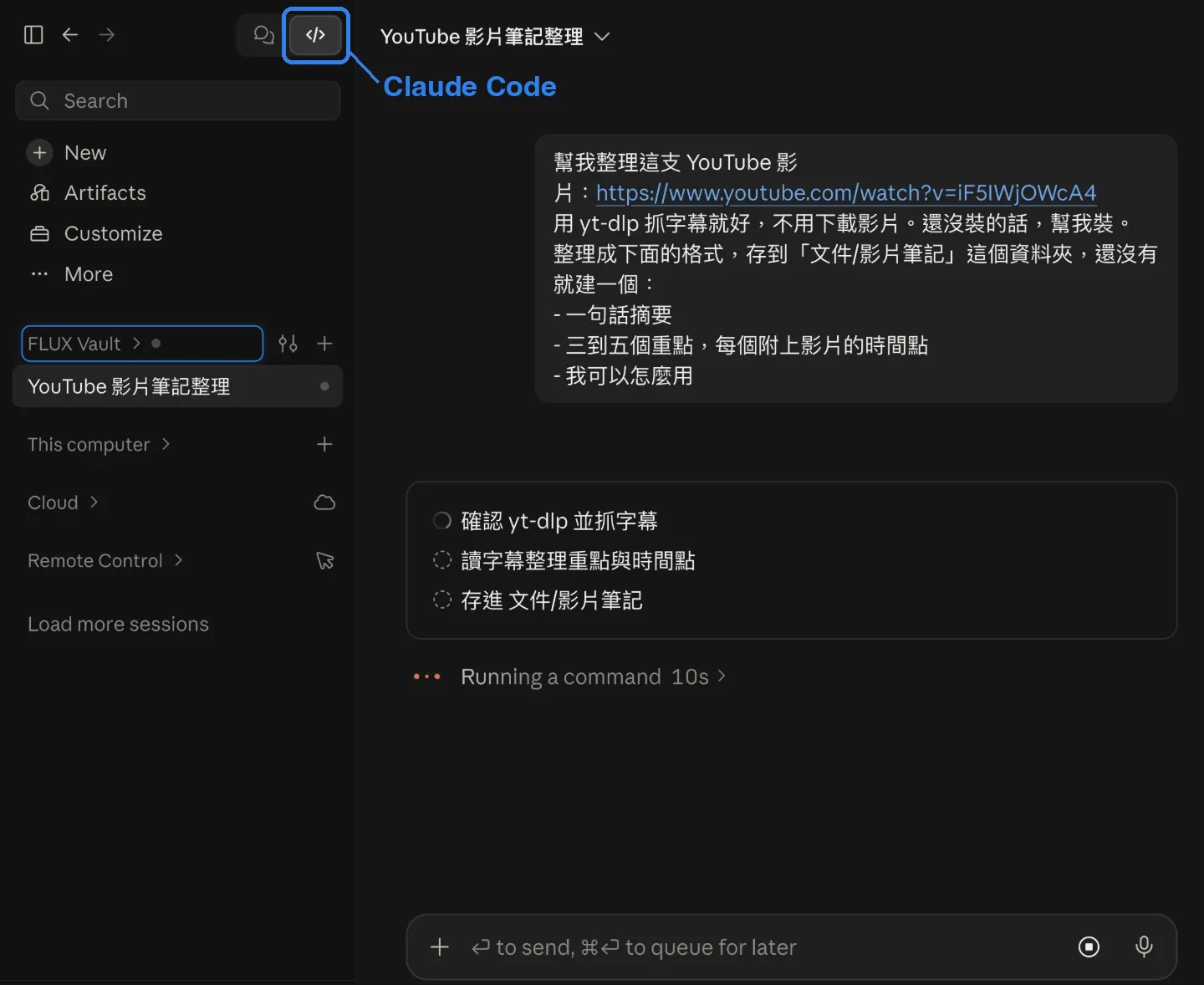
The first thing it does is check whether yt-dlp (a free tool that grabs YouTube subtitles) is on your computer. If not, it asks whether it can install it; just allow it. Then it grabs the subtitles and writes the notes.
I set the format for you to start with. Once the notes come out, change it to suit you: too many points, you want a section for the speaker’s own words, you don’t need “how I could use this.” Just tell it, and adjust until you’re happy.
Step 2: turn it into a skill. Once the notes are right, paste this in the same conversation:
Turn what we just did into a skill called video-notes, saved to ~/.claude/skills/.Write the subtitle-grabbing step as a program in scripts/, and save the note format as a template in assets/.Always save notes to the "Documents/Video Notes" folder, no matter where I start the conversation.In the description (the cover text), say clearly what it does and how I'll ask for it, e.g. "summarize this YouTube video", "make notes on this video", "what's this video about".Add one rule: if you can't get subtitles, stop and tell me, because notes written from just the title and description look real but are guesses.For that last rule, I wrote in the reason too. Chapter 5 comes back to why.
~/.claude/skills/ is inside your home folder, and it’s hidden: Finder on a Mac doesn’t show it by default (chapter 2 covers how to show it). Claude builds the folder with SKILL.md, scripts/, and assets/, all of which appear in the chapter 1 folder structure. To see the note template, ask it to show you.
Step 3: open a new conversation and check. Start a new conversation in any folder. Don’t explain anything; just say:
Summarize this YouTube video: (paste another YouTube link)When it’s done, check three things:
Notes go to one place. Once the skill is built, wherever you start a conversation, the notes go to “Documents/Video Notes.”
As the notes pile up, that folder becomes a record of what you’ve watched and what you care about.
How to Write Skills Well
Get It Right First, Then Have Claude Write It
Not one of my skills was written by hand.
Chapter 4 does exactly this. Anthropic also has an official skill for exactly this, called skill-creator. Once it starts, Claude interviews you: what your workflow looks like, when it should be used, what the edge cases are, and then produces the SKILL.md.
It can test, too: it writes test cases automatically, checks whether the skill gets used, and revises the description based on the results.
Explain Why Instead of Giving Orders
The skill-creator mentioned above contains a line that I think captures the most important thing about writing skills:
Try to explain to the model why things are important in lieu of heavy-handed musty MUSTs.
Explain why instead of giving orders.
If you notice a lot of “ALWAYS” and “NEVER” (in caps) in your SKILL.md, that’s a signal—try explaining why instead.
An example. You could write this in a skill:
ALWAYS display command contents before executing. NEVER execute directly.Or you could write this:
Show the command before running it, because the user needs to confirm it's safe.Running without confirmation could cause irreversible damage.With the first, Claude just follows those two rules. When it hits a situation the rules don’t cover (say, a command that looks safe but is actually risky), it doesn’t know how to judge.
With the second, Claude understands “why”—protecting the user. So even in gray areas the rules don’t mention, it leans toward caution. Reasons let the model generalize; rules only cover the cases you thought of.
The rule you added when building the skill in chapter 4 is written the same way: “if you can’t get subtitles, stop and tell me,” followed by the reason.
The one exception is format requirements—“the output must use this template” is a mechanical requirement with no “why” to explain. Just hard-code it.
What Skills Can Do
Anthropic distilled 5 design patterns from early users:
- Sequential steps: an ordered process. e.g. planning the day each morning: review yesterday, check this week’s goals, then build the list.
- Cross-tool coordination: data flowing between several tools. e.g. read email, check the calendar, and combine them into today’s to-do list.
- Iterative refinement: draft, check, revise if it fails. e.g. an article draft goes through a quality check and gets reworked if it doesn’t pass.
- Conditional branching: one goal, different paths depending on the situation. e.g. SEO research that decides, by topic, whether to look up keywords, check competitors, or map the industry.
- Embedded expertise: write domain knowledge in once. e.g. your company’s report format and style rules.
Most useful skills mix several. You don’t need to force a pattern; knowing the options just gives your writing more structure.
Skills Grow With You
One Skill Takes Many Revisions
My /daily is now on v8. The first version was bad—unclear steps, wrong paths, cases it didn’t handle.
Version 2 added content discovery integration. Version 3 fixed frequent errors in weekly progress calculations with explicit rules. Version 4 added automatic triggers—back then, a Tuesday reminder for the weekly review and a start-of-month reminder to archive. Version 5 added an iPhone light mode (it detects the environment and skips steps that need Python on the phone). Three more versions after that brought it to today’s v8.
Each version came from finding “this isn’t good enough” during real use, then fixing it.
A skill isn’t a config file you write and forget—it’s a living document of your workflow. The way you work changes, your needs change, and the skill changes with them. Each revision deepens your understanding of your own workflow. The process itself forces you to ask: “How do I actually work? Which steps really matter?”
Anthropic’s guide says the same thing:
The most effective approach is to iterate on a challenging task until Claude gets it right, then extract the winning approach into a skill. (paraphrased from The Complete Guide to Building Skills for Claude, p. 15)
Don’t aim for perfect on the first try. Build a v1 today, find the problems over a few days, make it v2. Good workflows grow; they aren’t designed.
Thirty-Plus Skills Weren’t Built at Once
I started with a single /daily. After a while, I noticed my weekly one-person review was also repetitive, so it became a skill. Then I was re-explaining my keyword research strategy every time, so that became another. Then my YouTube video analysis pipeline settled down, and that became one too.
Every skill was born from “I’ve done this too many times.” I never sat down to plan “which skills do I need”—they grew out of daily work.
Looking back, there are more than thirty now—not because I planned it, but because I use them every day and wrap up another one whenever something repeats.
Your first is the video notes from chapter 4. The next one grows from the small things you repeat every day:
| Repeated task | Why it’s worth a skill |
|---|---|
| Planning the day each morning | Runs daily, many steps, a set order |
| Weekly review | Fixed process: score, review, plan next week |
| Saving articles you read as notes | Same format as the video notes, just a web page instead of a video |
| Email and calendar | Useful wherever you work, so they’re personal skills |
For the next one, there are two routes:
In Anthropic’s official repo, open the skills for slides, spreadsheets, Word, and PDF to see what a well-written skill looks like. It’s a reference, not a first step.
Ready-made skills are everywhere. The largest directory is SkillsMP, which collects them automatically from GitHub—more than 3 million, none reviewed. The official repo has far fewer, with quality you can trust.
I don’t recommend starting by downloading a pile from a directory. There are too many, nobody reviews them, and other people’s workflows aren’t yours.
Before installing someone else’s skill, read through the files in the folder, especially scripts/. A skill can carry scripts and can touch your files. Anthropic’s own advice is to use only skills you wrote or ones from a source you trust.
Community skills are a generic starting point. A generic “daily planning” skill doesn’t know which project management tool you use, what your weekly goals look like, or how you prioritize. It becomes useful once it’s changed to fit your workflow.
You Can Fix It Without Coding
At one of my enterprise clients, an employee who doesn’t code noticed the calendar skill kept missing a meeting, and asked Claude why.
Claude found the cause: the skill only fetched meetings starting after “now,” so anything that started earlier that day never showed up. The fix was one condition in the skill: count from midnight of the current day instead.
A skill is text you can read. People who don’t code can still find what went wrong, and fix it.
Three things to take away
What This Means
Claude knowing who you are doesn’t mean it knows how you want each job done. A skill is like a stack of SOPs on a desk: one per job, saying how it’s done and to what standard. When a job comes up, Claude opens that one.
With that stack in place, /daily is my executive assistant, the weekly review one is my meeting facilitator, and the one that helps me write is my writing coach. Each one is the senior team member who knows you best—knows your preferences, understands your processes, remembers the pitfalls from last time—not a day-one intern.
Agent Skills aren’t hard—just Markdown with some structure. But the trend they represent matters: AI shifts from “you teach it every time” to “you teach it once.”
And the standard is open. The skill you write in Claude Code today can move to Cursor, Gemini CLI, or Codex tomorrow. Your investment isn’t locked into any single platform.
For me, Agent Skills are the step that takes AI from “usable” to “genuinely useful.” Tools connected (MCP), knowledge packaged (Skills)—what’s left is letting AI work your way, whether you use it to write code, do research, or turn daily operations into AI automation.
Next: From One Skill to a Whole System
I started using Claude Code in June 2025, first to build products, then for my work and life as well. It helps me build this site and several products, plans my workday every morning, handles email and calendar, reviews progress on my goals each week, and files what I learn into my knowledge base.
Each of those has a skill behind it. But what ties them together is a system. Goal management decides what to push this quarter and this week. Project and task management breaks that into today’s list. The knowledge base remembers what I’ve done and learned. Skills then get the work done my way. I call this system FLUX.
To keep going from here:
- How to Use Claude Code: From Setup to Your First Task, if you haven’t set up Claude Code yet
- Agentic Coding: A Practical Guide to Tools, Workflows, and Getting Started, for the bigger picture of working with AI agents
- Why Enterprise AI Workflow Adoption Gets Stuck at Step One, if you want to bring this to your team
Enjoyed this? Connect with me on LinkedIn — I’m open to collaboration, consulting, and new opportunities.
FAQ
- What are Claude Skills?
- A skill is a folder. Its SKILL.md says how to do one thing, and Claude opens it and follows it when it needs to. It solves the 'teaching AI the same thing every conversation' problem: write the method once, and every future conversation runs on the same instructions.
- How do I use Claude Skills?
- In the Code tab of the Claude desktop app, put the skill folder in ~/.claude/skills/. Claude uses it on its own when it's relevant, or you can call it directly with /name. In the chat tab of the Claude apps, go to Customize > Skills to turn on Anthropic's built-in skills or upload your own as a zip.
- How do I add a skill to Claude?
- The easiest way: get one task right in a conversation first, then tell Claude 'turn what we just did into a skill and save it to ~/.claude/skills/'. It builds the folder and SKILL.md for you. In the chat tab, zip the skill folder, open Customize > Skills, click '+', choose Create skill, then Upload a skill.
- Are Claude Skills free?
- In the Claude apps, yes. Anthropic's help center lists Free, Pro, Max, Team, and Enterprise, as long as code execution and file creation are turned on under Settings > Capabilities. Claude Code is different: it needs a paid plan.
- What's the difference between Claude Skills and MCP?
- MCP is the connector that lets Claude reach external tools and data; it answers 'can it do this?'. A skill describes what to do with the data; it answers 'how is this done best?'. In my content monitoring system, MCP pulls posts from Reddit and Hacker News, and the skill keeps those with an engagement score above 4, sorts them into 5 content types, and recommends 2 to 3 topics.
- Do I need to code to use Skills?
- No. SKILL.md is plain Markdown. You don't have to write it by hand either: get the task right in a conversation, then ask Claude to turn it into a skill. Anthropic also has an official skill called skill-creator that interviews you and then writes the SKILL.md.
- Do Skills only work with Claude?
- No. Agent Skills became an open standard in December 2025, and AI tools from OpenAI, Google, and Microsoft support it, so a skill you write for Claude also works in ChatGPT or VS Code. On the Claude side, your own skills are installed separately in the apps, Claude Code, and the API; they don't sync. Anthropic's built-in skills such as pdf and xlsx are the exception and also sync to Claude Code when you sign in with a claude.ai account.
- How long can a Skill be?
- Keep SKILL.md under 500 lines. Move long reference material into a references/ folder that Claude reads only when needed. Day to day, Claude only reads each skill's name and description, about 100 tokens, so even many skills take up little context.

WenHao Yu余文皓
Claude Certified Architect. Founder of Confluence Partners, helping companies adopt AI through consulting and training.
About →Related articles