Screen Time limits not working?I built my kids' Wi-Fi rules with Claude Code
Screen Time failed on our Mac, so I used Claude Code to build a program that switches each kid's own Wi-Fi on and off and counts time by traffic.

Contents
- 01Screen Time limits not working: set them, and they still don’t stick
- 02Why not build one myself?
- 03One sentence from me, and my kids’ Wi-Fi turns on or off
- 04Off by default, and only real use counts
- 05What you need, and how much of it I did myself
- 06Could this become a security hole in your home?
- 07Want to build one? Paste this request into Claude Code
I thought my son’s internet time was up. He said he’d stepped away for 30 minutes in the middle and hadn’t been using it then. We each had our own version, and there was just no settling it. I didn’t have a single record that lined up with either story.
Screen Time limits not working: set them, and they still don’t stick
With the off-the-shelf tools, I got stuck at every step. For a long time, most parents had to make do with tools like Apple’s Screen Time or router parental controls. I set time limits in Screen Time, and set blocks on our old router (a TP-Link Deco). On the kids’ devices, the Mac and the iPhone are signed in to different accounts, so I had to set up Screen Time on each one separately. The old router was a whole other system.
When time ran out, Screen Time on the Mac failed, and Chrome would sometimes still open. The blocks on the old router often didn’t stop anything. When I tried to find out why, I had no data to troubleshoot with. TP-Link’s own site has a support article with this exact title: Troubleshooting Guide: Deco Parental Control Not Working as Expected.
It’s not just my house. For some parents, the limits they set disappear on their own. In December 2022, a parent with an iPhone posted on Apple Community that the limits would vanish “after a day or even less.” That thread has since collected 7,056 “Me too” votes (as of November 3, 2026). In July 2023, Apple told The Wall Street Journal it was aware that “some users may be experiencing an issue where Screen Time settings are unexpectedly reset”; the coverage was about limits parents had set on iPhones and iPads (Engadget). According to 9to5Mac, all Apple could suggest at the time was resetting devices.
On our Mac, the usage report built into Screen Time looked crude to me. With several apps open at the same time, it seemed to count the time for every one of them, so the total came out far higher than the time anyone was actually using the computer.
One iPhone user posted on Apple Community that on a day they’d been on their phone for no more than an hour, their own phone’s report showed 13 hours.
There’s no settling anything with a report like that.
When a kid finished their chores and I wanted to give a little extra time on the spot, the rules were too rigid. I had to enter the passcode in Screen Time on the Mac to change the limit, then open the old router’s app to lift the block.
Why not build one myself?
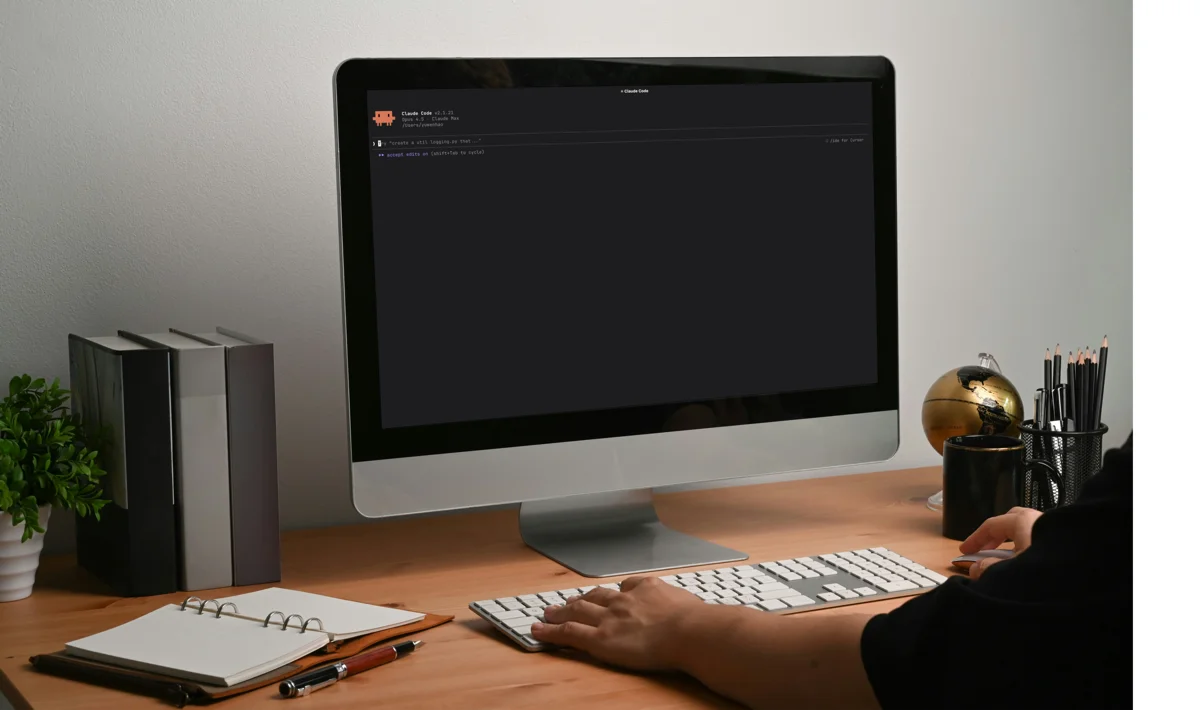
I use Claude Code for work every day, yet it never occurred to me to build a small program for my own home. I kept relying on off-the-shelf tools. Claude Code is an AI tool that writes code and also runs it.
Since vibe coding came along, parents have a second option: build it yourself.
One day I drew out the system architecture and split it into pieces. Taken apart, every piece was something I could do. I’d set the rules, and I’d be free. By free I mean I no longer have to keep track of when my son is online or when he got on, and every minute he uses is on record.
One sentence from me, and my kids’ Wi-Fi turns on or off
The whole setup uses three machines: my phone or laptop on my end, a Mac mini at home (a computer that stays on all the time), and one router the whole family shares. There’s also a status page in the cloud where the kids can see how much time they have left.
I replaced the old router with a new one, a GL.iNet Flint 3e. The parents and the rest of the family use the main Wi-Fi. My son and my daughter each get their own Wi-Fi (the router’s built-in guest Wi-Fi). Each has only their own password. Turning off a kid’s own Wi-Fi leaves the main Wi-Fi running as usual. The old router managed by device: its schedules and blocks keyed on MAC addresses (a device’s ID on the network), so once a device’s address changed, the rules couldn’t reach it. The new setup manages by person: the rules follow each kid’s own Wi-Fi, whatever device they connect with.
The allowance is the number of minutes a kid can be online each day. It resets at midnight, and unused minutes don’t carry over. Every minute a kid is actually using the Wi-Fi comes out of the allowance, and when it hits zero, their own Wi-Fi shuts off.
On my phone or laptop, I just say what I want in plain words, like “on” or “add 30 minutes for my son.” Giving extra time on the spot no longer means changing two sets of settings; one sentence does it. Once I’ve said it, as long as there’s allowance left, the kid’s own Wi-Fi comes back on within a minute.
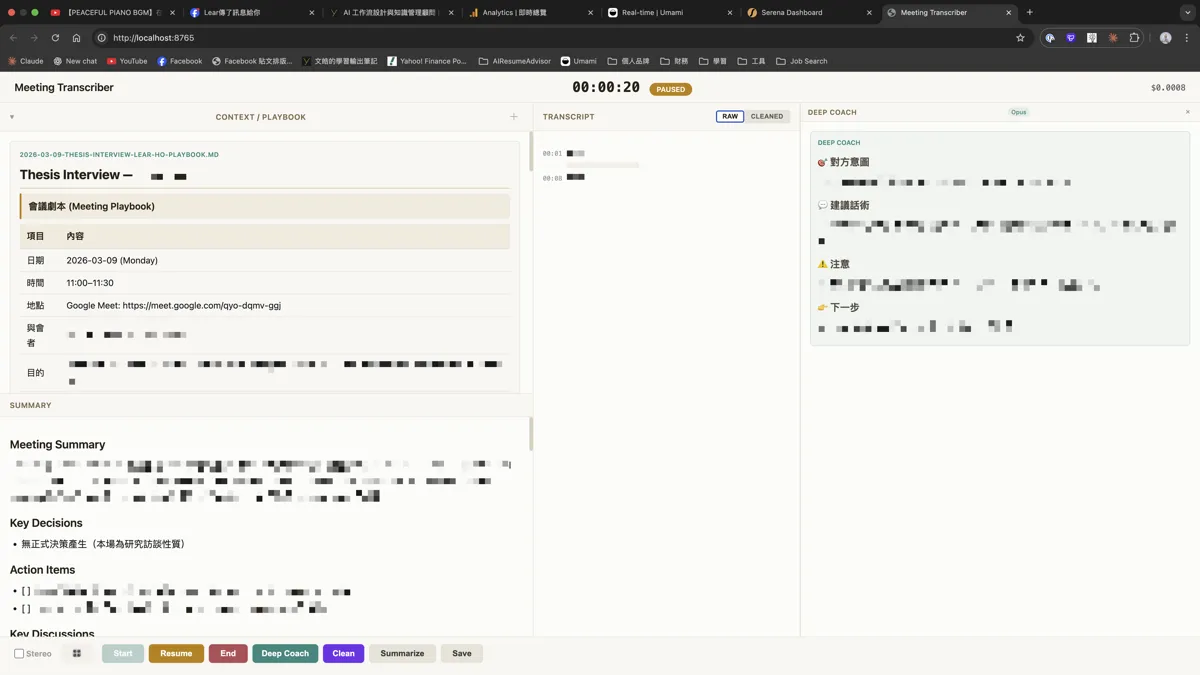
Each kid has their own status page, showing how much is left today in big type, plus a 24-hour time bar marking which stretches were in use, and the reason for each time added or taken away. When I tell Claude Code “check allowance,” I can see how much time a kid has used.
Solid arrows are connections between programs, and dashed arrows are wireless Wi-Fi connections. Of the router's four Wi-Fi networks, the ones outlined in red are switched on and off by the program, and the gray dashed ones are left alone.
①My phone uses Remote Control in the Claude app to connect to Claude Code on the Mac mini.
②Claude Code on my laptop connects to the Mac mini over SSH (an encrypted connection that lets another computer log in and operate it with commands) and runs there. When I'm out, the laptop and the Mac mini both have Tailscale installed (a tool that lets machines on different networks reach each other), so I can still connect home.
③Claude Code writes an addition or deduction to the allowance log, and the minute timer reads it the next minute.
④The Mac mini is connected to the router over the main Wi-Fi or a cable. Every minute, the program checks traffic on the router over SSH, then tells it to turn that kid's guest Wi-Fi on or off. If the Mac mini isn't on this router, installing Tailscale on both still lets them reach each other.
⑤The router runs four Wi-Fi networks. The main Wi-Fi on 2.4 GHz and 5 GHz is for the parents and the rest of the family, and stays on as usual. The guest Wi-Fi on 2.4 GHz is for my daughter and on 5 GHz for my son, and each has only the password to their own.
⑥The program pushes the time left and the in-use stretches to the status page in the cloud, only when something changes.
⑦The kids' computers go online through their own Wi-Fi and open their own page in a browser.
We used to each have our own version. Now both of us look at the same record.
Off by default, and only real use counts
Parents can’t watch their kids’ usage all the time, so when the school year started, we made a house rule: off by default. On weekday mornings, both kids’ Wi-Fi starts out off, and their allowance is zero until I say “on.” The router’s own schedule still turns the kids’ Wi-Fi on in the morning. If I haven’t said “on” for a kid yet, the program immediately turns that kid’s Wi-Fi back off. When my son finishes his homework or chores, I use the Claude app on my phone to tell Claude Code on the Mac mini, remotely, “turn on my son’s.” He gets that day’s preset allowance, and I can still add or take away time.
The preset allowance is short on weekdays and a bit more generous on weekends. On weekend mornings, the kids’ Wi-Fi turns on by itself, without waiting for me to say “on” first.
Once the Wi-Fi is on, checking whether a device is connected isn’t enough. A sleeping Mac stays on the network too, and its time would get counted for nothing. So the program looks at traffic instead: a minute only counts as used if data is actually moving in that minute. The threshold is how much traffic it takes to count, currently 150 KB per minute.
The 30 minutes my son said he stepped away can now be calculated: as long as traffic in that stretch stayed under the threshold, it doesn’t count as him using the Wi-Fi.
One weekday evening's time bar (sample)
Over the threshold, counted: two 15-minute stretches
Away 30 minutes: under the threshold, not counted
Allowance used up, his Wi-Fi turns off
Sample data, not a kid's actual usage. The real status page shows a full 24 hours.
Since we got the time bar, we haven’t had another argument over how much time was actually used.
What you need, and how much of it I did myself
If you want to build this yourself, my setup needs three things. The first two are a computer that stays on all the time and an AI tool installed on it. The third is a router that can turn just the kids’ Wi-Fi on and off.
The computer: set it to never sleep. A Windows PC should work too (Claude Code runs on Windows), but I haven’t tried it.
The AI tool: it has to be an AI agent installed on that computer at home, like Claude Code (an AI that runs commands itself), not a chat AI on a web page like claude.ai or ChatGPT. A chat AI can write code for you, but it can’t run commands on your computer at home, so it can’t reach your router.
I built mine with Claude Code. From my laptop I connect to the Mac mini over SSH (a way to log in to another computer and operate it with commands), or I control it remotely from the Claude app on my phone. OpenAI’s Codex and xAI’s Grok Build are the same kind of tool and should be able to do this too. You can SSH into that computer to use them the same way. To control Codex from your phone, the computer at home needs the ChatGPT desktop app, and you connect to it from the ChatGPT app on your phone.
The router: it has to be able to do the following.
- Besides the main Wi-Fi, it can run guest Wi-Fi, and each network can be switched on and off separately, so you can turn off only the kids’ and leave the adults’ alone.
- Its system is based on OpenWrt (an open-source router operating system) and allows SSH login, so the computer at home can check traffic and switch Wi-Fi with commands.
- It has its own schedule that turns the kids’ Wi-Fi off at night and on in the morning, so if the computer at home crashes, the kids’ Wi-Fi still comes back on by the next morning at the latest.
OpenWrt and SSH are the two keywords to look for when you pick a model. If you choose one that ships with an OpenWrt-based system, you won’t have to replace the router’s original system yourself (flashing it).
If the computer at home is connected to this router by cable or the main Wi-Fi, it can SSH into the router directly. If it isn’t on this router, the router needs to support Tailscale (a tool that lets machines on different networks reach each other), installed on both the router and that computer. Connecting home from your laptop while you’re out also goes through Tailscale, so install it on the laptop and on that computer.
The one I use at home: GL.iNet Flint 3e (GL-BE6500). Its system is based on OpenWrt and allows SSH login, and Tailscale is built into its admin panel.
How much I did myself: I bought the router on Amazon and had it shipped to Taiwan, where I live. The program itself was done in two evenings. The code, the testing, and the status page were all handed to Claude Code.
Could this become a security hole in your home?
What attackers want is to steal your passwords and API tokens (the codes programs use to log in), and to spend your money through your accounts. Or to tamper with your home router and send you to fake websites.
I took stock of my own setup: everything that can switch the network on and off sits on one always-on computer. The key for logging in to the router (a file used in place of a password) lives on it, and what can reach that computer from outside is two accounts: the AI tool’s and Tailscale’s.
Red circles mark the places to guard. The numbers match the four principles below.
An attacker has only three ways in: knock on the door directly, take over one of your accounts, or trick you or the AI into installing something bad on the computer. Of the four principles below, the first three each guard one of those ways in, and the fourth means that even if someone does get in, they can’t do much.
1. Keep the door shut: don’t let anything outside connect in directly, and use a tool like Tailscale to reach home. Only devices you’ve added to your own Tailscale network can connect, and the connection is encrypted. You can reach home when you’re out without opening a door to the outside.
2. Lock down accounts and passwords: Claude and Tailscale have no passwords of their own; you sign in with an account like Google. Turn on two-step verification for the account you sign in with, or for both if you use different ones, so any new device has to pass that check first. Lock the cloud service behind the status page too, and keep passwords and tokens out of files.
3. Keep the computer clean: download what you install only from official sites, including anything the AI installs, and keep the router, the computer, and the AI tool updated.
4. Give just enough permission: an AI follows the instructions it reads, including ones someone has hidden in a web page or a file. So let the router key only check traffic and switch Wi-Fi, and don’t run the AI in a mode that skips permission prompts.
Starting in 2026, people have been buying search ads for fake Claude Code install pages that tell you to paste in a one-line command. Paste it and the Mac ends up with data-stealing malware. It steals the browser’s logged-in sessions, and two-step verification only checks you at the moment you log in, which makes principle 3 all the more important. Some fake pages even sit on shared conversation pages on claude.ai, so even the address is real. The surest way to tell is how you got to the page: type the official address, code.claude.com, yourself, and don’t click ads.
The request in the next section has these four principles written in. The AI will follow it for the router and program settings. Two-step verification on your accounts is something you turn on yourself, and the AI will remind you.
Want to build one? Paste this request into Claude Code
You don’t need my program. What you need is to spell out your home’s setup, your rules, and what you want. You can paste the text below straight into an AI tool installed on your computer, like Claude Code or Codex. Replace each [ ] with your own details; where a bracket offers two choices split by a slash, keep the one that fits. Once you paste it, the AI will first ask what information is still missing, then propose an architecture and steps, and walk you through to the end. The last sentence asks it to check with you before each step. You don’t need to know how to code.
I want to build a small program at home to manage my kids' internet time. Please help me plan it, then build it step by step.
My home setup:- Kids: [how many kids, and which devices each one uses]- A computer that stays on all the time: [model, operating system]- One router the whole family shares: [model]. It needs to run multiple Wi-Fi networks and switch any one of them on and off separately. If you're not sure whether this router's system is based on OpenWrt or whether it allows SSH login, please check that for me first.- The computer at home is [connected to this router's main network (by cable or the main Wi-Fi) / not on this router]. If it's not on this router, we can connect them with a tool like Tailscale. Once they're connected, first confirm that the computer can reach the router's admin panel. If I'm not sure how things are connected, I can send you a photo of the back of the router.- Network for parents and other family members: this router's main Wi-Fi
The rules I want:- Each kid gets their own Wi-Fi, set up on the router's guest Wi-Fi, with only the password to their own. Put each kid's Wi-Fi on just one band, for example one on 2.4 GHz and one on 5 GHz. The rules follow the kid: they're tied to the kid's own Wi-Fi, not to devices. Once it's set up, help me confirm that the kids' Wi-Fi is really on the guest Wi-Fi.- Daily allowance: [minutes on weekdays, minutes on weekends]. It resets at midnight, and unused minutes don't carry over to the next day.- Use traffic to decide whether a kid is using the Wi-Fi: a minute only counts as used if traffic in that minute is over a threshold, so a sleeping computer doesn't get counted. Log a few days first, then suggest a threshold to me based on the actual numbers.- When the allowance runs out, turn off that kid's Wi-Fi.- At night, the router's own schedule forces the kids' Wi-Fi off: [what time it turns off, what time it turns back on in the morning]. The schedule covers only the kids' Wi-Fi and must never turn off the main Wi-Fi; if this router can't do that, tell me first. When I say "on," that kid is cleared for today, and I say it once a day for each kid (weekends can be set to clear automatically in the morning). In the morning, the router's schedule turns the kids' Wi-Fi on, and the program then turns off any kid who hasn't been cleared yet. That way, if the program breaks, the kids' Wi-Fi still comes back on by the next morning at the latest.
How I'll operate it:- I want to talk to you [by remote-controlling the computer at home from my phone / sitting at that computer], and I need to be able to operate it when I'm not home.- One sentence to add time, take away time, make today unlimited, or cut today off early. Unlimited for today means nothing is deducted until the kids' Wi-Fi turns off at night. Cutting today off early means the kid's Wi-Fi stays off for the rest of the day. Record the reason for every entry.
What the kids can see:- One web page per kid, showing how much is left today, which stretches of the 24 hours were in use, and the reason for each time added or taken away.- Records stay on the computer at home, and the web page is hosted in the cloud and updates only when something changes. The kids' guest Wi-Fi is usually isolated from the main network and can't reach the computer at home, so a page hosted at home wouldn't open for them.
Security principles:- If the program fails, fail toward the network staying on. Don't turn off the kids' Wi-Fi because the program broke.- Log in to the router with a key. Don't ask me to paste the password into the chat.- Once everything is set up, turn off password login for SSH on the router, and limit this key to checking traffic and switching Wi-Fi.- Don't set up port forwarding, and don't turn on the router's remote management. To connect from outside, use a tool like Tailscale.- If we use Tailscale, help me set rules so that only the machines that need to reach each other can connect.- List what needs updating (router firmware, Tailscale, the operating system on the computer at home, the AI tool) and remind me to update them regularly.- Remind me to turn on two-step verification for the accounts (Google, for example) I use to sign in to the AI tool, Tailscale, and the cloud service hosting the web page; to turn on trusted devices for remote control and device approval in Tailscale; and not to use a simple password for the router's admin panel.- Don't store the passwords and tokens the program needs in plain text in files. Use the system keychain or a password manager instead.- If I'm running in a mode that skips confirmations, remind me to switch out of it first, and don't use it at all for this project.- When packages need to be installed, install them only from official sources, and tell me before you install.- Once it's built, test once from a kid's Wi-Fi to confirm it can't reach the computer at home or the router's admin panel.- Start by only logging, without turning off the kids' Wi-Fi. Run it for a few days to confirm the numbers make sense before actually turning anything off.- Don't touch the main Wi-Fi the parents use. Before you start actually turning things off, switch the kids' Wi-Fi a few times as a test, and use ping to confirm that devices on the main Wi-Fi don't drop.
Please first ask me what information is still missing, then propose an architecture and steps, and check with me before each step.
The Amazon link in this post is an affiliate link: if you buy through it, I earn a small commission, and your price stays the same. As an Amazon Associate I earn from qualifying purchases.
- Questions, or something to work on together? Find me on LinkedIn ↗
FAQ
- Why don't Screen Time limits work?
- One issue Apple has acknowledged is that Screen Time settings may reset unexpectedly: in July 2023, it told The Wall Street Journal it was aware that "some users may be experiencing an issue where Screen Time settings are unexpectedly reset." The coverage at the time was about limits parents had set on iPhones and iPads. According to 9to5Mac, all Apple could suggest at the time was resetting devices. On our Mac, when time ran out, Screen Time failed, and Chrome would sometimes still open. When I tried to find out why, I had no data to troubleshoot with.
- Can I put parental controls on my router?
- Yes, some routers have parental controls built in; a TP-Link Deco, for example, lets you set schedules and blocks. On the Deco in my house, the blocks often didn't stop anything, and I had no data to troubleshoot with. I ended up replacing it and giving each kid their own Wi-Fi (the router's built-in guest Wi-Fi). A small program on an always-on computer at home switches those networks on and off by each kid's daily allowance, so the rules follow the kid, whatever device they connect with.
- What kind of router do I need to control my kids' Wi-Fi?
- In my setup, an always-on computer at home switches the kids' Wi-Fi on and off by each kid's daily allowance, so the router has to do three things. First, besides the main Wi-Fi it can run guest Wi-Fi, and each network can be switched on and off separately, so you can turn off only the kids' and leave the adults' alone. Second, its system is based on OpenWrt (an open-source router operating system) and allows SSH login (a way to log in to another computer and operate it with commands), so that computer can check traffic and switch Wi-Fi with commands. Third, it has its own schedule that turns the kids' Wi-Fi off at night and on in the morning, so if that computer crashes, the kids' Wi-Fi still comes back on by the next morning at the latest. Mine is a GL.iNet Flint 3e, and OpenWrt and SSH are the two keywords to look for when you pick a model.
- Do I need to know how to code to build a program with AI that switches my kids' Wi-Fi on and off?
- You don't need to know how to code, but you do need an AI tool installed on your computer, like Claude Code, which is what I use; a chat AI on a web page can't reach your router. Your part is to spell out your home's setup, your rules, and what you want. Paste the request at the end of the post into it, and as its last sentence asks, the AI will first ask what's missing, then propose an architecture and steps, and check with you before each step, so you keep confirming all the way through. Two-step verification on accounts like the one you use to sign in to the AI tool is something you turn on yourself. I use Claude Code for work every day, and in my house the program itself was done in two evenings.

WenHao Yu余文皓
Claude Certified Architect. Founder of Confluence Partners, helping companies adopt AI through consulting and training.
About →Related articles